
DNS and DHCP Explained: The Two Services Behind Most 'No Internet' Tickets
How names become IP addresses, how your device gets an address, and the commands that show when either one breaks.
There's an old joke among network engineers: "It's not DNS. There's no way it's DNS. It was DNS." DNS and DHCP are two services that run quietly in the background on every network. When either one breaks, users say "the internet is down", even though the internet is fine. Knowing how they work lets you find the real problem in a couple of minutes.
DNS: the internet's phone book
Computers find each other by IP address. People remember names. DNS (Domain Name System) connects the two. When you type tryhackme.com, DNS looks up the IP address behind that name, and your browser connects to that address.
Without DNS, you'd have to type numbers into your browser for every website.
How a DNS lookup works
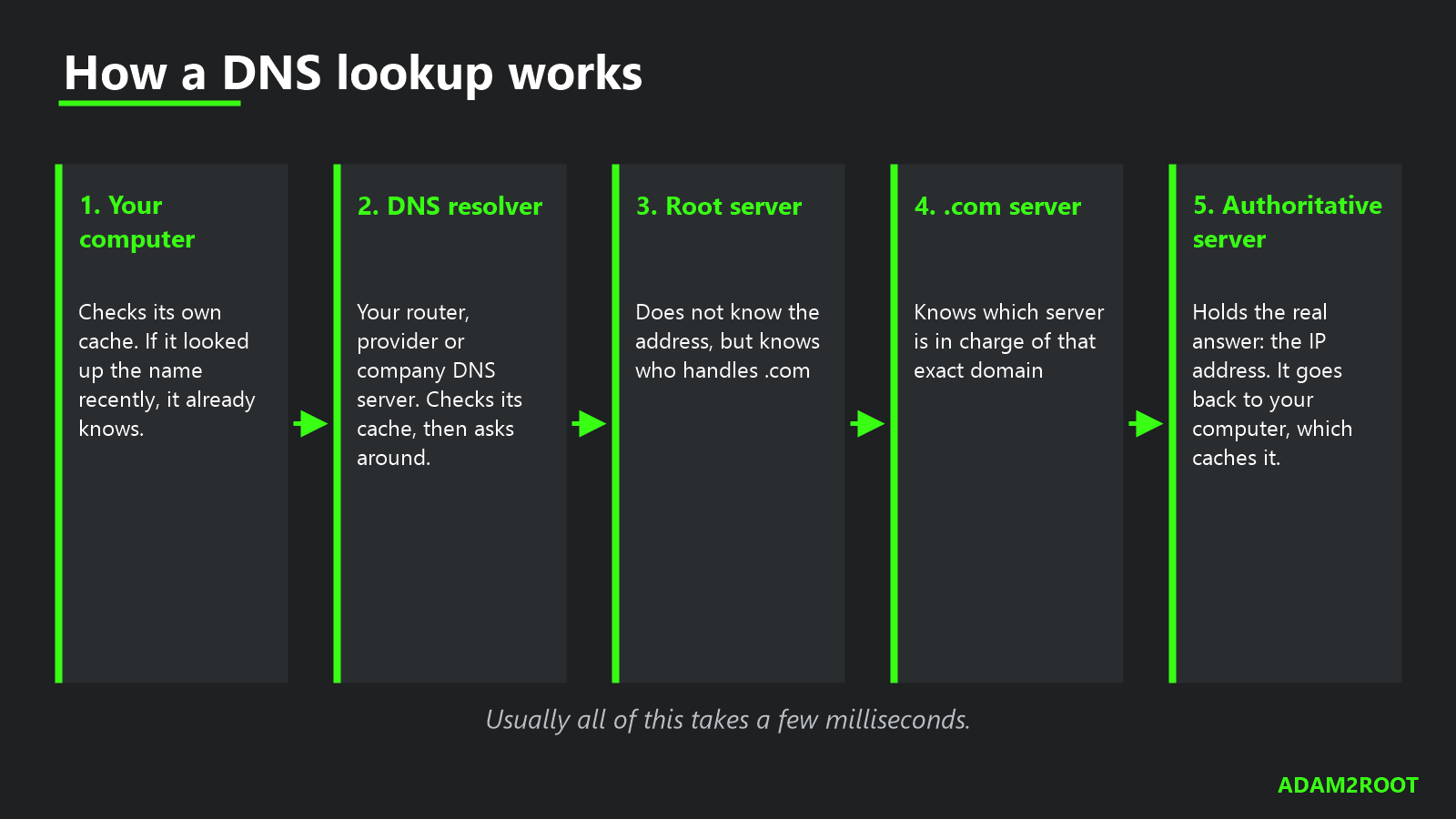
When you visit a site, your computer goes through these steps. It usually takes a few milliseconds.
- Check the local cache. Your computer keeps a short memory of names it looked up recently. If the answer is there, it's done.
- Ask the DNS resolver. If not, it asks its configured DNS server, usually your router or your internet provider's server. In companies it's often a domain controller, a server that manages accounts and logins on a Windows network.
- The resolver finds the answer. If the resolver doesn't know either, it asks a chain of servers: a root server points it to the right top-level domain server (the one for
.com), which points it to the authoritative server for that exact domain, which holds the real answer. - The answer comes back to your computer, which saves it in its cache for next time.
DNS record types you'll meet
DNS holds more than one kind of answer. Each kind is called a record.
| Record | What it holds | Example use |
|---|---|---|
| A | An IPv4 address | example.com points to a server |
| AAAA | An IPv6 address | Same, for IPv6 |
| CNAME | Another name (an alias) | www.example.com points to example.com |
| MX | The mail server for a domain | Where email for @example.com should go |
| TXT | Free text | Used to prove who owns a domain and to fight email spoofing |
| NS | The name servers for a domain | Which servers hold the domain's records |
The hosts file
Before asking DNS at all, Windows checks a small text file at C:\Windows\System32\drivers\etc\hosts. A line in that file can force a name to point to any address. It's useful for testing, and it's also something malware has abused to send users to fake sites. If one computer goes to the wrong site and others don't, the hosts file is worth a look.
DHCP: handing out addresses
In the last post you saw that most devices get their IP address automatically. The service that does that is DHCP (Dynamic Host Configuration Protocol). At home, it runs on your router. In companies, it usually runs on a server.
DHCP gives a device four things: an IP address, a subnet mask, a default gateway and the DNS servers to use. That's everything it needs to get online.
The four steps: DORA
When a device joins a network, DHCP works in four messages. Remember them as DORA.
- Discover. The device shouts to the whole network: "Is there a DHCP server here?"
- Offer. The DHCP server answers: "You can have 192.168.1.23."
- Request. The device replies: "I'll take 192.168.1.23."
- Acknowledge. The server confirms, and the address is the device's for a while.
That "while" is called the lease. When it runs low, the device asks to renew it. When a lease runs out without being renewed, the address goes back into the pool for someone else.
When DHCP doesn't answer
If no DHCP server responds, Windows gives itself an address starting with 169.254. You met this in the last post. Now you know the cause: the Discover went out and no Offer came back. The usual reasons are a loose cable, Wi-Fi that isn't really connected, a DHCP server that's down, or a pool that has run out of addresses.
The commands
These are the commands a help desk technician uses for DNS and DHCP problems. Run them in Command Prompt.
ipconfig /all
Shows your DNS servers, whether DHCP is enabled, which DHCP server gave you your address, and when your lease expires.
nslookup tryhackme.com
Asks DNS for the address of a name and shows which DNS server answered. If you get an address back, DNS is working for that name.
nslookup -type=mx gmail.com
Asks for a specific record type, here the mail servers for gmail.com.
/flushdns, /release and /renew need an administrator Command Prompt: right-click Command Prompt and choose Run as administrator.
ipconfig /flushdns
Clears your computer's DNS cache. Useful when a site moved to a new address but your computer still remembers the old one.
ipconfig /release
ipconfig /renew
/release gives your current address back to the DHCP server, and /renew asks for a new one. This fixes many 169.254 problems. Warning: /release cuts your network connection until /renew finishes, so don't run it on a computer you're connected to remotely.
How to tell which one is broken
This short test separates a DNS problem from a real connection problem. It comes up all the time.
ping 8.8.8.8. This pings a public DNS server run by Google by its address. If replies come back, you can reach the internet.ping google.com. This needs DNS to turn the name into an address first.
If step 1 works and step 2 fails with "could not find host", the internet is fine and DNS is the problem. If step 1 fails too, the problem is lower down: the cable, Wi-Fi, IP address or gateway.
Why this matters for security
Attackers love DNS. They register names that look like real ones (micros0ft-login.com) for phishing (fake messages and websites that trick people into giving away passwords or other information). They try to poison DNS caches so users are sent to fake sites. Some malware hides its traffic inside DNS lookups because DNS is allowed through almost every firewall (software or a device that decides which network traffic gets through). Defenders watch DNS logs for exactly these signs. A rogue DHCP server on a network can also hand out a fake gateway or DNS server and quietly redirect traffic. You'll come back to all of this in the security posts.
Your exercise
- Run
ipconfig /all. Write down your DNS servers, your DHCP server and when your lease expires. - Run
nslookupon three sites you use. Note the addresses you get back. - Run
nslookup -type=mxon the domain of your own email provider. Which servers handle its mail? - Do the two-step test above (
ping 8.8.8.8, thenping google.com) and write one sentence about what each result means. - Bonus, on your own computer only: open Notepad (normal, not as administrator, because you're only reading), choose File > Open, paste
C:\Windows\System32\drivers\etc\hostsinto the File name box and press Enter. Just read it, and close it without saving. Most of it is comments starting with#.
Keep learning
- TryHackMe: DNS in Detail. A room from the How The Web Works module of the Pre Security path, with a hands-on DNS lookup tool.
- Cloudflare: What is DNS? A clear written guide with diagrams.
- Microsoft: ipconfig and nslookup. The official reference for every option of both commands.
What's next
The next post is about ports and protocols: how one computer runs a website, email and file sharing at the same time without mixing them up. You'll also run your first Nmap scan.
Comments
Join the discussionNo comments yet. Be the first to comment.
Adam2Root: Help Desk to Hacker
A free, step-by-step path from zero IT knowledge to a first help desk job, and from there toward penetration testing. Written by someone learning it one step ahead of you. Read the posts in order.