Ports, Protocols and TCP vs UDP (Plus Your First Nmap Scan)
How one computer runs many services at once, the ports worth memorizing, and a safe first scan with Nmap.
One server can host a website, receive email and share files, all on the same IP address. So when a packet arrives, how does the server know which program it's for? The answer is ports. Ports are also where IT support and hacking meet most directly: a technician checks whether a port is open so an app can work, and a penetration tester checks which ports are open to find a way in. This post covers both, and ends with your first Nmap scan.
What a port is
If the IP address is the street address of a building, a port is the apartment number. The IP address gets the packet to the right computer. The port number gets it to the right program on that computer.
Port numbers go from 0 to 65535. A program that waits for connections on a port is said to be listening on that port. When a port has a program listening, it's open. When nothing is listening, it's closed.
The numbers are split into three groups:
- 0 to 1023: well-known ports. Reserved for common services, such as 443 for secure websites.
- 1024 to 49151: registered ports. Used by specific applications, such as 3389 for Remote Desktop.
- 49152 to 65535: dynamic ports. Picked at random by your computer for its side of a connection.
When you open a website, the server's side is port 443, and your side is a random high port your computer picked. That's how your computer keeps ten open tabs apart.
The ports worth memorizing
You don't need all 65,536. These cover most of what you'll see in help desk tickets, job interviews and beginner CTFs.
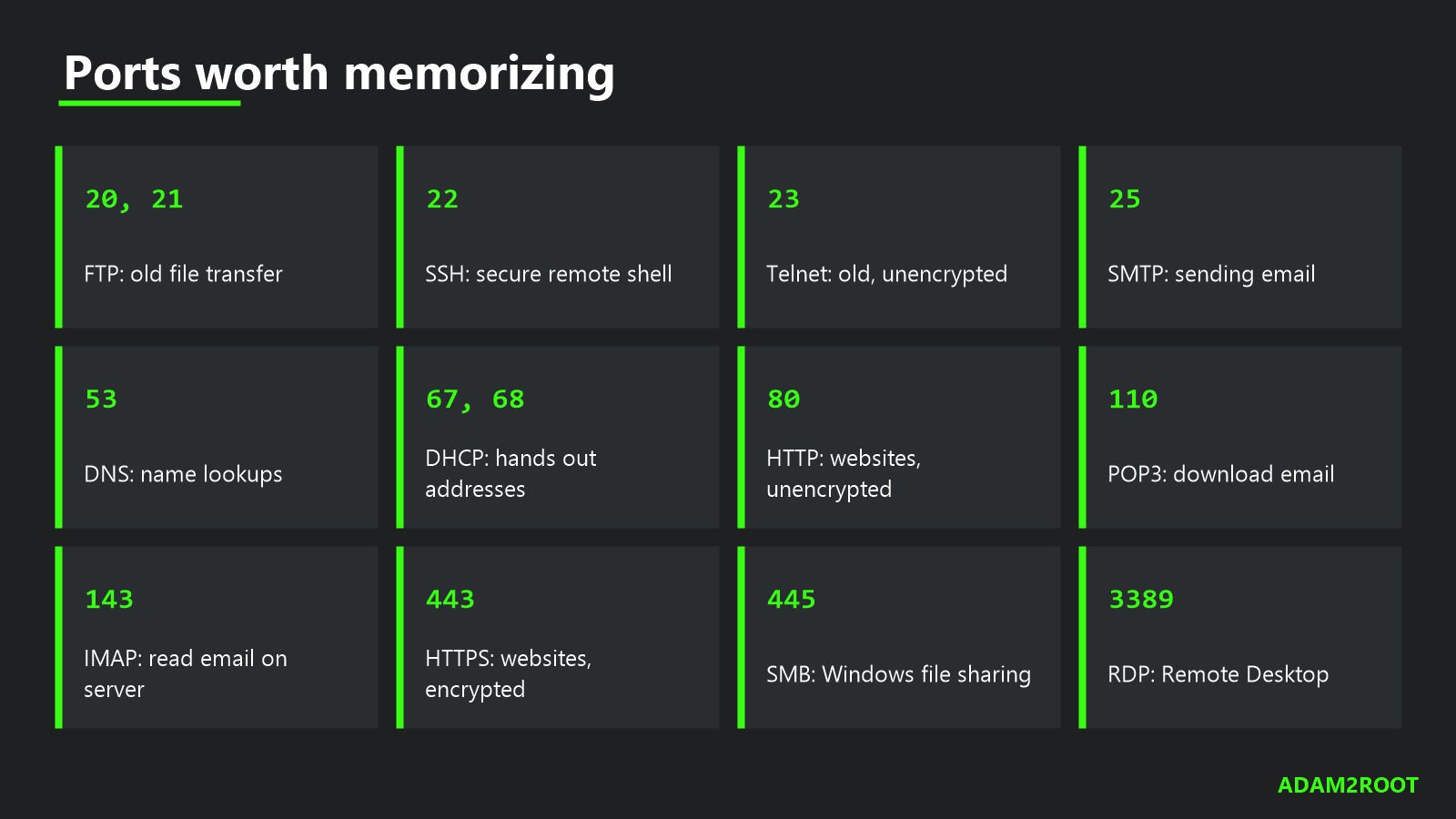
| Port | Service | What it's for |
|---|---|---|
| 20, 21 | FTP | Old file transfer, sends passwords in plain text |
| 22 | SSH | Secure remote command line, mostly to Linux |
| 23 | Telnet | Old remote command line, unencrypted, avoid it |
| 25 | SMTP | Sending email between mail servers |
| 53 | DNS | Name lookups (from the last post) |
| 67, 68 | DHCP | Handing out IP addresses |
| 80 | HTTP | Websites, unencrypted |
| 110 | POP3 | Downloading email (older) |
| 143 | IMAP | Reading email on the server |
| 443 | HTTPS | Websites, encrypted |
| 445 | SMB | Windows file and printer sharing |
| 3389 | RDP | Windows Remote Desktop |
The official list of port numbers is kept by IANA, the organization that also manages IP address allocation.
TCP and UDP
Packets travel to a port using one of two main protocols. Which one a service uses depends on whether it cares more about reliability or speed.
TCP (Transmission Control Protocol) is reliable. Before sending data, the two sides set up a connection with a three-way handshake:
- Your computer sends SYN ("can we talk?").
- The server replies SYN-ACK ("yes, can you hear me?").
- Your computer sends ACK ("yes"). The connection is open.
After that, TCP numbers every packet, checks that each one arrived, and resends any that got lost. Websites, email, SSH and file sharing all use TCP, because a missing piece would break the file or page.
UDP (User Datagram Protocol) is fast. It skips the handshake and just sends. If a packet is lost, it's gone. That suits things where speed matters more than perfection: video calls, online games, streaming and most DNS lookups. A missing frame in a video call is better than the whole call freezing while it waits.
A simple way to remember it: TCP is a phone call, where both sides confirm they're there. UDP is shouting across a room and hoping you're heard.
Seeing ports on your own computer
Your own computer has ports open right now. You can see them.
In Command Prompt:
netstat -ano | findstr LISTENING
netstatshows network connections.-ashows all connections and listening ports,-nshows numbers instead of names (faster),-oshows the process ID (PID) of the program that owns each one.| findstr LISTENINGfilters the output to show only listening ports.
To find which program a PID belongs to, open Task Manager, go to the Details tab and look for that number in the PID column.
To check whether a remote port is reachable, PowerShell has a handy command:
Test-NetConnection tryhackme.com -Port 443
If the last line says TcpTestSucceeded : True, the port is open and reachable from your computer. Help desk uses this when an app "can't connect to the server", to see whether a firewall is blocking the port.
On Linux, the equivalent of the netstat command is:
ss -tuln
-t shows TCP, -u shows UDP, -l shows only listening ports, and -n shows numbers instead of names.
Your first Nmap scan
Nmap is a free tool that checks which ports are open on a computer and what's running on them. Network administrators use it to audit their own networks, and penetration testers use it at the start of almost every engagement. It's one of the tools all three job listings in Post 2 asked for.
The rule first. Only scan computers you own, or ones you have written permission to scan. Scanning someone else's systems without permission can break the law in many countries, and it can get your internet connection cut off by your provider. The scans below are on your own computer and on a server the Nmap project set up for people to practice on.
Install it. Download the Windows installer from the Nmap download page and run it with the default options. It also installs Npcap, a driver Nmap needs to work on Windows. On Kali Linux, Nmap is already installed.
Scan your own computer. Open a new Command Prompt and run:
nmap localhost
localhost means "this computer". By default, Nmap checks the 1,000 most common TCP ports and lists the ones that are open, with the service it guesses is behind each one. Compare the result with your netstat output. You should see some of the same ports.
Scan the practice server. The Nmap project runs scanme.nmap.org so people can learn. Its page says you're allowed to scan it, and that a few scans a day is fine, but you shouldn't hammer it with hundreds.
nmap -sV scanme.nmap.org
-sV asks Nmap to probe each open port and detect the service and its version, for example which SSH server software is running. Version numbers matter in security, because old versions often have known weaknesses.
The output lists each open port, its state and the service. That's the first step of reconnaissance, and you'll come back to Nmap many times in the hacking part of this course.
Why this matters for help desk
Many "this app doesn't work" tickets come down to a port. The app's server might be down, or a firewall might be blocking its port. If a user can't use Remote Desktop, the first question is whether port 3389 is reachable. If email won't send, it may be a blocked mail port. Test-NetConnection answers those questions in seconds.
What to remember for now
This post had a lot of numbers. You don't need to memorize all of them today, and nobody expects you to know every port. Here's what matters right now:
- The idea. The IP address gets a packet to the right computer. The port gets it to the right program on that computer.
- TCP vs UDP. TCP checks that everything arrived. UDP just sends and doesn't check.
- The ports in the table. Go over them a few times and quiz yourself (step 5 of the exercise below does that). Knowing them helps in tickets and in job interviews.
The rest comes with time. You'll see ports 22, 80, 443 and 3389 so often in tickets, labs and Nmap scans that they'll stick without flashcards. Learn the basics now, and let practice fill in the rest.
Your exercise
- Run
netstat -ano | findstr LISTENING. Pick two listening ports and use Task Manager's Details tab to find which program owns each. - In PowerShell, run
Test-NetConnectionagainst port 443 of a website you use. Then test port 23 on your own computer:Test-NetConnection localhost -Port 23. One should succeed and one should fail. Why? - Install Nmap and run
nmap localhost. Write down every open port and the service Nmap shows. - Run
nmap -sV scanme.nmap.orgonce. Which ports are open, and which service versions did it find? - Without looking at the table above, write down which service runs on ports 22, 53, 80, 443, 445 and 3389. Check yourself. Repeat in two days.
Keep learning
- Nmap reference guide. The official manual. Read the "Port Scanning Basics" section first.
- TryHackMe: Packets & Frames. Covers TCP, UDP and the three-way handshake, with a hands-on part.
- Cloudflare: What is a computer port? A short written explanation with examples.
What's next
The next post takes on subnets, the topic that scares most beginners. It's mostly simple counting, and you'll see that once it's explained step by step.
Comments
Join the discussionNo comments yet. Be the first to comment.
Adam2Root: Help Desk to Hacker
A free, step-by-step path from zero IT knowledge to a first help desk job, and from there toward penetration testing. Written by someone learning it one step ahead of you. Read the posts in order.