IP Addresses Explained: Public, Private and the Default Gateway
What the four numbers mean, why your address starts with 192.168, and how your home shares one public address.
Every device on a network needs an address, or nothing can find it. When a help desk technician looks at a broken connection, the first thing they check is the IP address, because it tells them a lot in one glance. By the end of this post you'll be able to read an address like 192.168.1.23 and know roughly what's going on.
What an IP address is
An IP address is a number that identifies a device on a network, so data can be delivered to it. IP stands for Internet Protocol, the set of rules that moves packets between networks.
There are two versions in use today:
- IPv4. Four numbers separated by dots, like
192.168.1.23. Each number goes from 0 to 255. This is the one you'll see most often. - IPv6. A newer, much longer format written in hexadecimal (a counting system that uses the digits 0 to 9 and the letters A to F), like
2001:db8:85a3::8a2e:370:7334. It exists because the world ran out of IPv4 addresses.
IPv4 has about 4.3 billion possible addresses. That sounded like plenty in the 1980s. Today there are far more devices than that, which is why the tricks below exist. This post focuses on IPv4, because it's still what you'll troubleshoot every day.
Why each number stops at 255
Computers store an IPv4 address as 32 bits: 32 ones and zeros. The four numbers are those 32 bits split into four groups of 8, called octets. Eight bits can hold any number from 0 to 255, so that's the range for each part.
You don't need to convert to binary to do help desk work. Subnets, in Post 10, are taught without it too.
Public and private addresses
There are two kinds of IPv4 address, and mixing them up is a common beginner mistake.
- Public addresses are unique on the whole internet. Your internet provider gives your home one public address.
- Private addresses are for use inside a local network only. Millions of homes use the same private addresses, and that's fine, because they never appear on the internet directly.
Three ranges are reserved for private use, defined in a standard called RFC 1918:
| Range | Where you'll usually see it |
|---|---|
10.0.0.0 to 10.255.255.255 |
Large company networks |
172.16.0.0 to 172.31.255.255 |
Company networks, some cloud setups |
192.168.0.0 to 192.168.255.255 |
Homes and small offices |
If an address starts with 192.168. or 10., it's private. That's why your laptop's address probably starts with 192.168.
How a whole house shares one public address: NAT
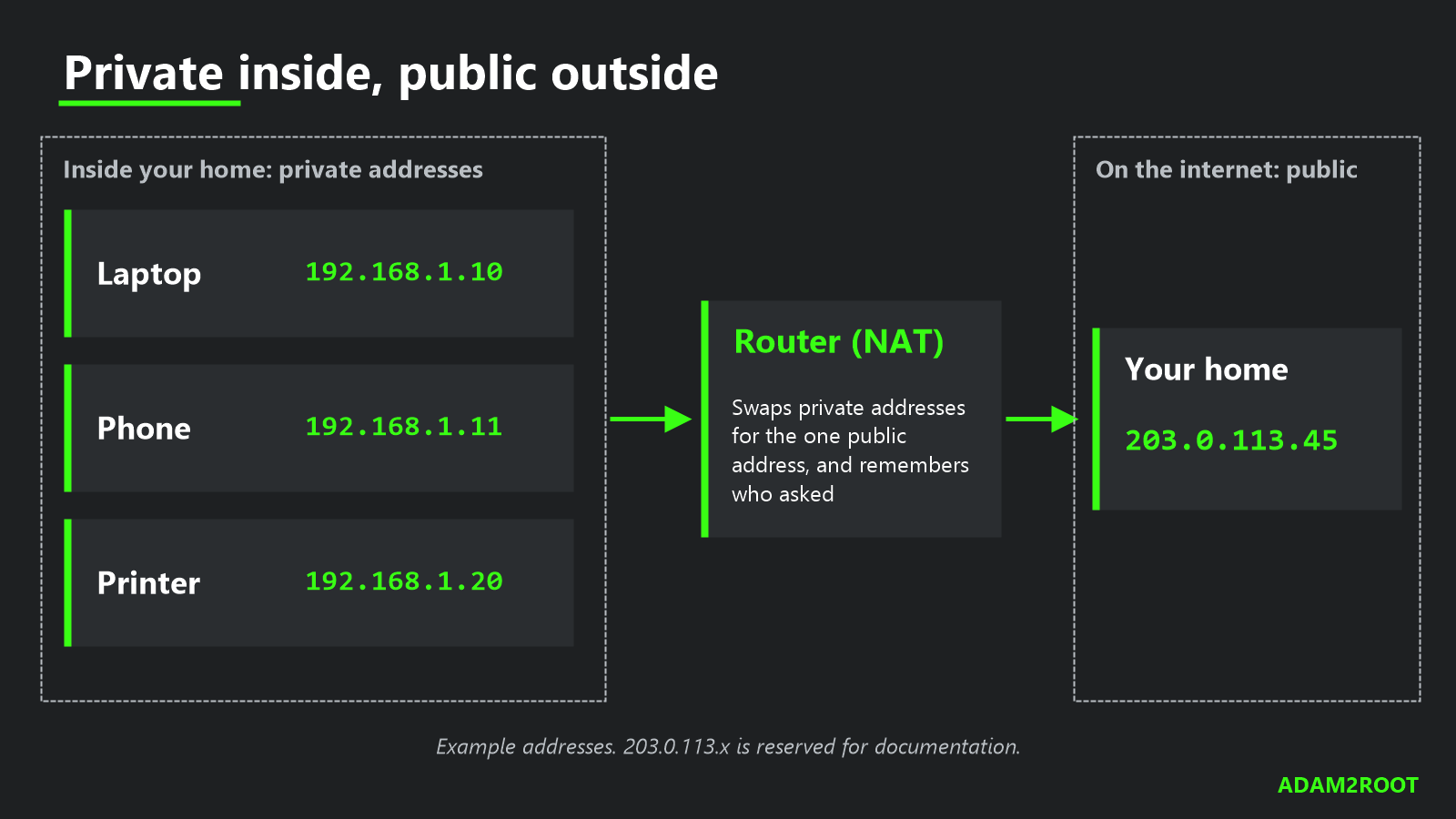
Your home has one public address, but maybe ten devices. Your router solves this with NAT (network address translation). When your laptop sends a request to a website, the router swaps the laptop's private address for the home's public address, sends it out, and remembers which device asked. When the answer comes back, it hands it to the right device.
That's why a website sees your home's public address, not your laptop's private one.
A side effect is that devices on the internet can't start a connection to your laptop directly, because they only see the router. That isn't a full security measure, but it's one reason home networks aren't more exposed than they are.
Addresses with a special meaning
Learn these three. You'll meet all of them in tickets.
127.0.0.1(localhost). Always means "this computer". It's used to test the network software on the machine itself.169.254.x.x(APIPA, Automatic Private IP Addressing). If a Windows computer shows an address starting with 169.254, it means it asked for an address and nobody answered, so it gave itself one. That computer can't reach the internet. This is one of the most useful clues in help desk, and Post 8 explains the cause.0.0.0.0. Means "no address" or "any address", depending on where you see it.
The default gateway
Your computer can talk directly to devices on its own local network. For anything outside it, such as a website, it sends the packets to one device that knows the way out. That device is the default gateway, and at home it's your router.
Think of it as the door of the house. Anything that isn't for someone inside goes out through the door.
If a computer can't reach its default gateway, it can't reach the internet at all. That's why "ping the gateway" is one of the first checks in any no-internet ticket.
Static and dynamic addresses
- Dynamic. The device gets an address automatically when it joins the network. This is what almost every laptop and phone does. The service that hands out addresses is called DHCP, and it's in the next post.
- Static. Someone typed the address in by hand, and it doesn't change. Servers, printers and routers often use static addresses so they're always in the same place.
A static address that overlaps with the automatic range can cause an IP conflict: two devices with the same address, and one or both can lose their connection. Windows shows a warning when it detects one.
Why this matters for security
When a penetration tester gets access to one machine, one of the first things they look at is its IP address and network settings. The address tells them which network they're on and which other devices might be nearby. Defenders read the same information in logs to see where an attack came from. It's the same skill, used from both sides.
Your exercise
- Open Command Prompt and run:
ipconfig
- Find your IPv4 Address, Subnet Mask and Default Gateway. Is your address private? Which of the three ranges is it in?
- Check that you can reach your gateway. Replace the address below with your own default gateway:
ping 192.168.1.1
ping sends a few small test packets and shows whether replies come back, and how long they took in milliseconds. Replies mean your computer can reach the router.
- Find your public address by searching "what is my IP" in your browser. Compare it with the IPv4 address from step 2. They're different, and now you know why.
- Bonus: check your phone's public address on Wi-Fi, then turn Wi-Fi off and check again on mobile data. It should change, because you're now on a different network.
On Linux, use ip a to see your addresses and ip route to see your default gateway (the line that starts with default via).
Keep learning
- TryHackMe: Intro to LAN. Covers addresses and how devices on a local network find each other, with questions to check yourself.
- Cloudflare: What is my IP address? A short, clear explanation of IP addresses, including IPv4 vs IPv6 and static vs dynamic, from a company that runs a big part of the internet.
What's next
The next post covers DNS and DHCP: the service that turns names into IP addresses, and the service that hands addresses out. Together they cause a big share of all "no internet" tickets.
Comments
Join the discussionNo comments yet. Be the first to comment.
Adam2Root: Help Desk to Hacker
A free, step-by-step path from zero IT knowledge to a first help desk job, and from there toward penetration testing. Written by someone learning it one step ahead of you. Read the posts in order.