What Is a Network? Networking Explained for Total Beginners
Devices, LANs, the internet, switches and routers in plain English, plus the two addresses every device has.
Almost every ticket that starts with "I can't" ends up being about the network. I can't open the shared drive, I can't print, I can't get on Teams. And almost every attack in cybersecurity travels over a network. That makes networking the second pillar of IT, right after the computer itself. This post gives you the big picture. The next five posts fill in the details.
A network is just connected devices
A network is two or more devices connected so they can send data to each other. That's all. Your phone and your laptop on the same Wi-Fi are a network. So is an office with 300 computers, printers and servers. So is the internet.
A device on a network is often called a host or a node. It can be a computer, a phone, a printer, a smart TV, a camera or a server.
Server and client are two words you'll hear constantly. A server is a device or program that provides something (a website, files, email). A client is the device or program that asks for it. When you open a website, your browser is the client and the computer hosting the site is the server.
LAN, WAN and the internet
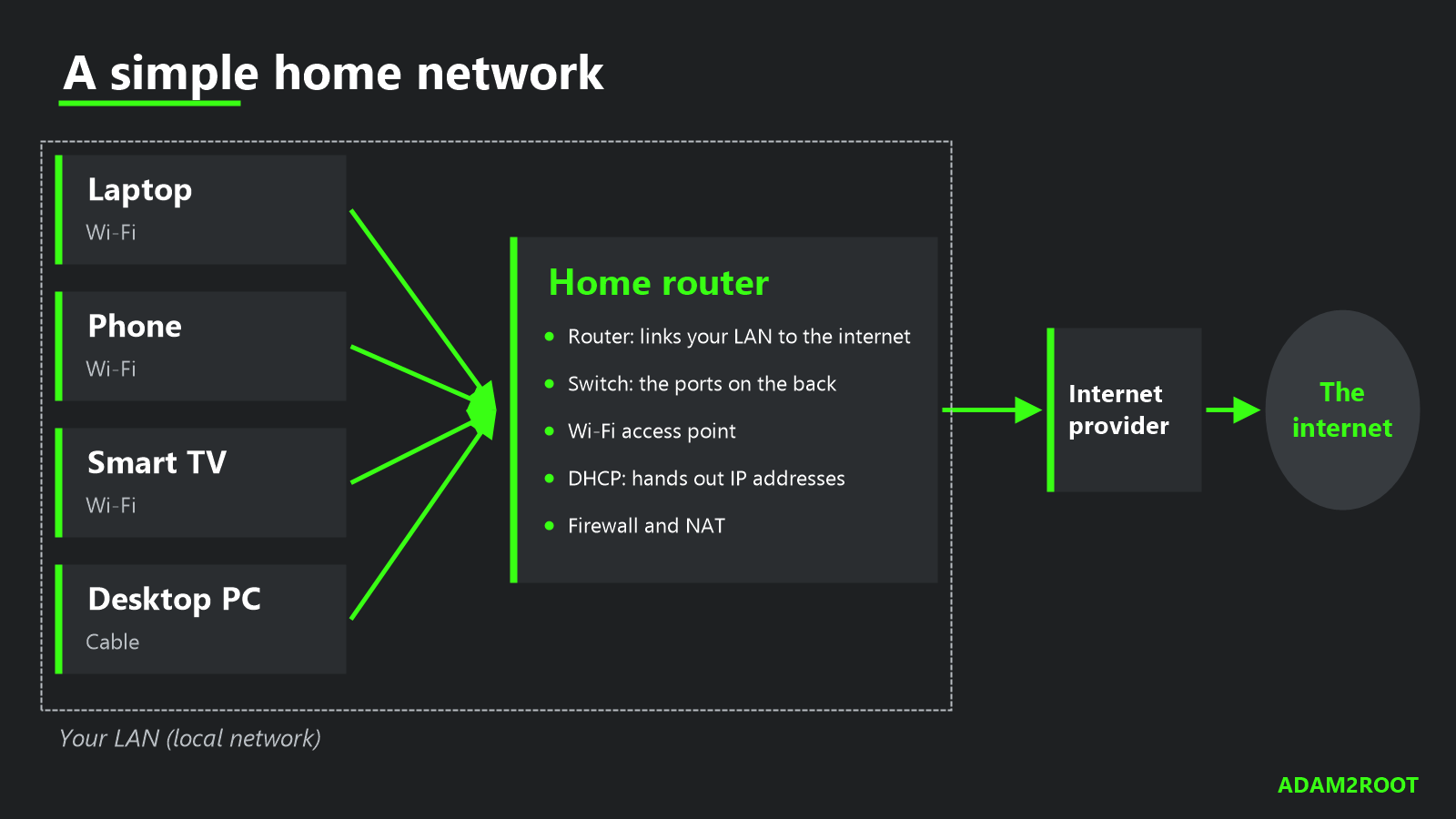
- LAN (local area network). Devices in one place: a home, an office floor, a school. Your home Wi-Fi is a LAN.
- WAN (wide area network). A network that connects networks across long distances. A company with offices in two cities joins its two LANs with a WAN.
- The internet. The biggest WAN of all. It's millions of networks, owned by different companies, all agreeing to pass data to each other. That's why it's called a network of networks.
How data travels: packets
When you send a photo, it doesn't travel in one piece. It's cut into small chunks called packets. Each packet carries a piece of the data plus a label that says where it came from and where it's going, like an envelope with a sender and a recipient address.
The packets can take different paths and arrive out of order. The receiving device puts them back together. If one goes missing, it can be sent again. Cutting data into packets is what lets millions of people share the same cables at the same time.
The rules: protocols
Devices made by different companies can only talk if they follow the same rules. Those rules are called protocols. A protocol says how a message must look and what each side should do with it.
You already use many protocols without knowing it. HTTPS is the protocol your browser uses for websites. DNS is the one that turns names like google.com into addresses. DHCP gives your device an address when it joins a network. Each of these gets its own post in this module.
Every device has two addresses
- MAC address. A hardware address built into the network card (the NIC from the last post). It looks like
3C-52-82-1A-7F-09. It's used to deliver data inside the local network, from one device to the next. - IP address. A logical address the device gets when it joins a network. It looks like
192.168.1.23. It's used to find a device across networks, including the internet.
A simple way to remember it: the IP address is like the street address on a letter, and the MAC address is like the name of the person at that address. The postal system uses the street address to get the letter to the right building, and the name gets it to the right person inside.
When your laptop moves from home to a café, its IP address changes, because it joined a different network. Its MAC address normally stays the same, although many phones and laptops now use a different random MAC address for each Wi-Fi network, for privacy.
The devices that move the data
- Switch. Connects devices inside a LAN. It learns which MAC address sits on which of its ports, so it can send each packet only to the device it's meant for.
- Router. Connects different networks together and decides where to send packets next, using IP addresses. Your home router connects your LAN to your internet provider.
- Access point. Lets devices join the network over Wi-Fi instead of a cable.
- Modem. Connects your home to your internet provider's line (fiber, cable or phone line).
At home, one box often does all of these jobs at once: router, switch, Wi-Fi access point and sometimes modem. In an office they are usually separate devices. Post 11 looks at each one in more detail.
Why this matters for help desk and security
For help desk, networking is how you narrow down "it doesn't work". Is the problem this one computer, this one room, or the whole office? Is it the cable, the Wi-Fi, the address, or the website itself? Each question points to a different part of the network.
For security, attackers need a network path to reach a system, and defenders control those paths. A penetration tester spends a lot of time working out which devices are on a network and what they expose. Every concept in this module comes back later in the hacking posts.
Your exercise
This takes ten minutes on a Windows computer.
- Press the Windows key, type
cmdand press Enter to open Command Prompt. - Run this command:
ipconfig /all
ipconfig shows your network settings, and /all asks for the full details.
- Find the adapter you're using (Wi-Fi or Ethernet). Write down:
- Physical Address. That's your MAC address.
- IPv4 Address. That's your IP address on the local network.
- Default Gateway. That's your router's address. You'll learn exactly what it means in the next post.
- Now run:
arp -a
arp -a shows the list of IP addresses your computer has recently talked to on the local network, and the MAC address for each. Find your default gateway's IP in the list and note its MAC address.
- Draw your home network on paper: the router in the middle, and every device you can think of connected to it. Write the IP addresses you know next to them.
On Linux or macOS, ip a (Linux) or ifconfig (macOS) shows your addresses instead.
Keep learning
- TryHackMe: What is Networking? and Intro to LAN. The first two rooms of the Network Fundamentals module in the Pre Security path. Some rooms are free and some need a subscription.
- Professor Messer's Network+ course. Free videos for CompTIA Network+, the standard entry-level networking certification. Much deeper than this module, and good for later.
- NetworkChuck. A YouTube channel that makes networking fun to watch. Good when you want something lighter.
What's next
The next post is about IP addresses: what the numbers mean, why your laptop's address starts with 192.168, and what a default gateway really is.
Comments
Join the discussionNo comments yet. Be the first to comment.
Adam2Root: Help Desk to Hacker
A free, step-by-step path from zero IT knowledge to a first help desk job, and from there toward penetration testing. Written by someone learning it one step ahead of you. Read the posts in order.